¶ Overview
The Security menu provides access to security settings for Users, Roles, and Zone Definitions through the Security Wizard.
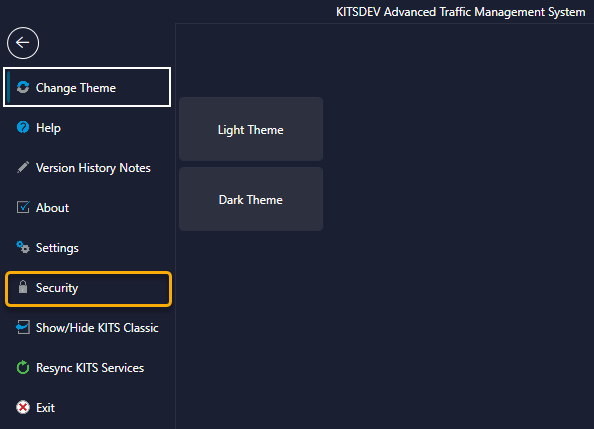
Selecting Security from the Admin dropdown opens a new window. Quick Setup or Advanced Setup can be selected to setup up security settings within KITS.
¶ Quick Setup
The Quick Setup form allows an administrator to quickly add or delete a user, or modify a user's role.
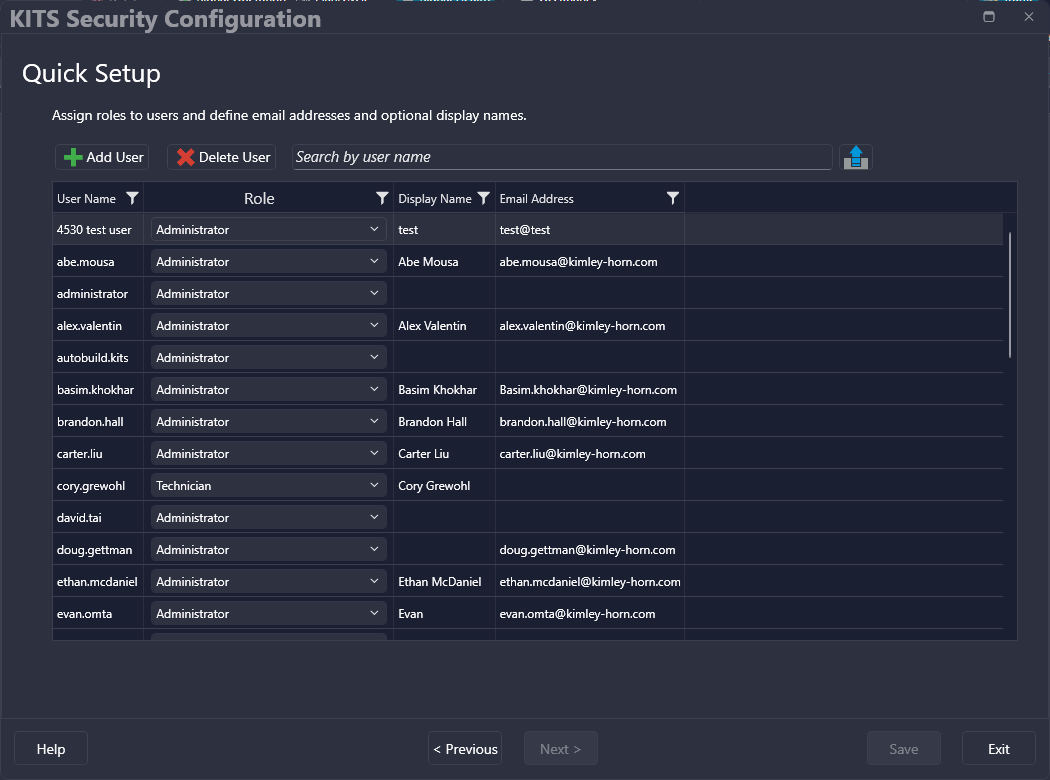

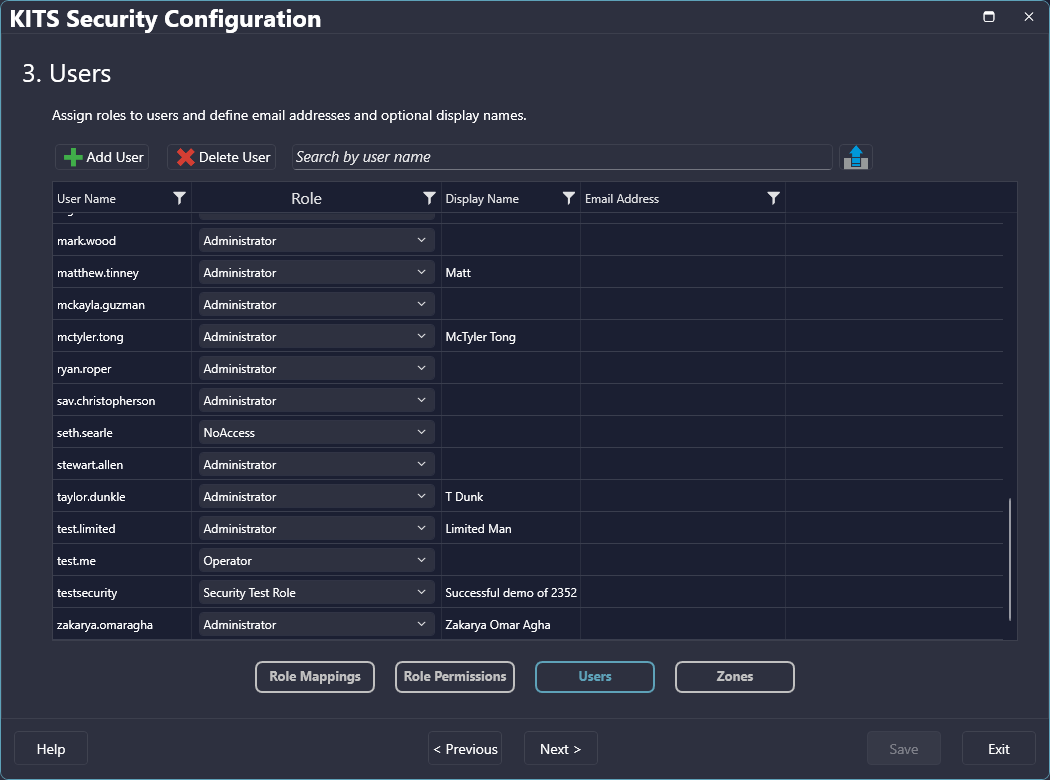
To add a user, click the 'Add User' button and start entering the user information in the new row. To delete a user, select the appropriate row and click the 'Delete User' button.
| Buttons | Description |
| User Name | The user's Windows user name (KITS uses Windows authentication so this must match the appropriate user's Windows Login ID) |
| Role | The Role that the user is mapped to (see Role Permissions for how role configuration works) |
| Display Name | Optional field to enter an alternate user name for display throughout KITS |
| Email Address | Optional field to enter the user's email address for use in email alerts |
| Control Level | The user's control level (see more about Control Levels) |
| Agency ID | |
| Phone | Optional field to enter a phone number for the User List |
| Department | Optional field to enter a department for the User List |
| FAST User ID |
¶ Security Advanced Setup (Admin | Security | Advanced)
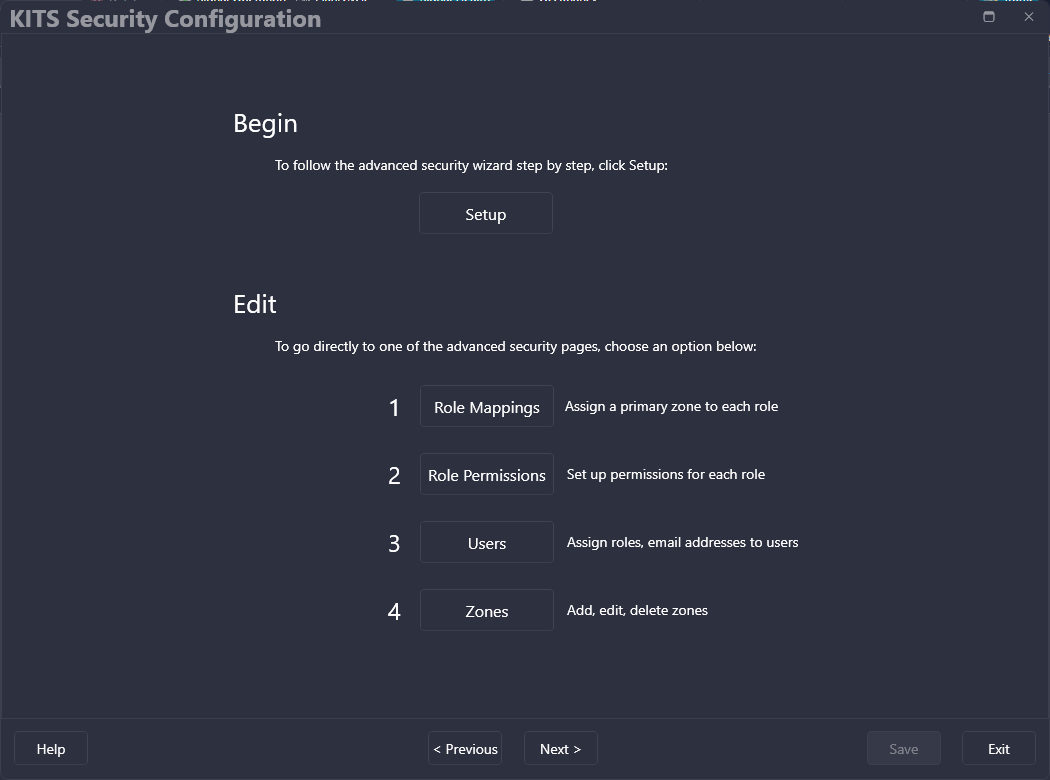
The Advanced Security Wizard provides an option to walk step by step through the advanced security pages, or to go directly to a page.

¶ Security Role Mappings (Admin | Security | Advanced)
This allows users to assign a Role to a primary Zone.
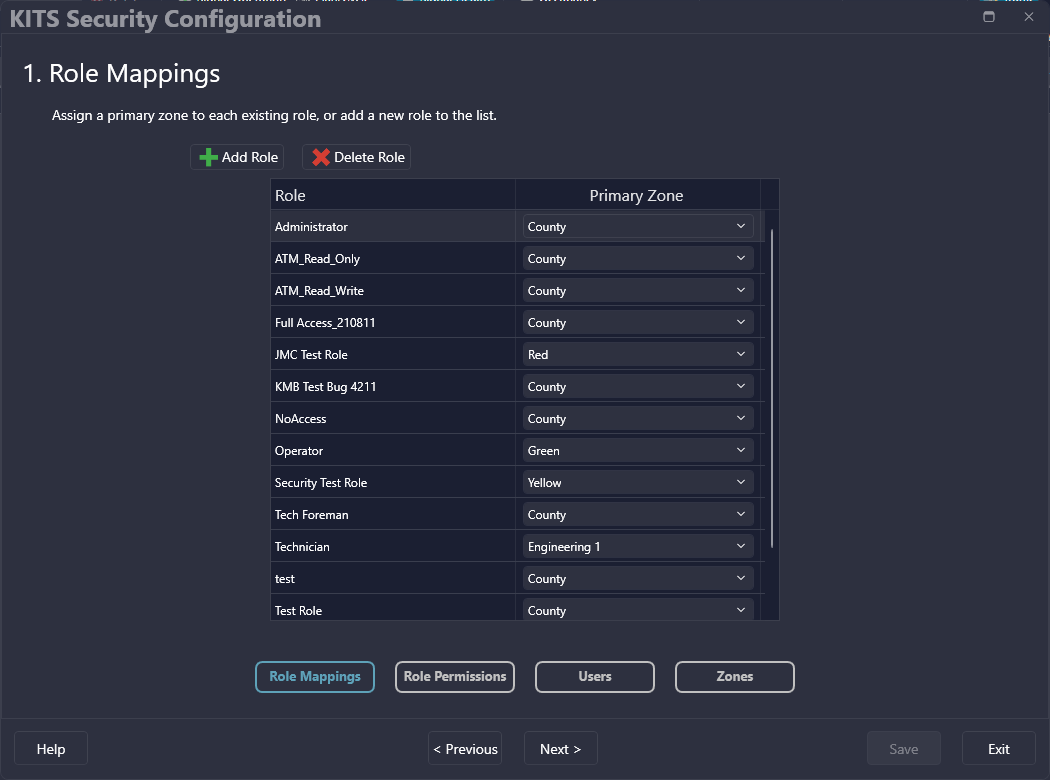

To add a role, click the 'Add Role' button and start entering the role information in the new row. To delete a role, select the appropriate row and click the 'Delete Role' button.
| Buttons | Description |
| Role | The name of the given role |
| Primary Zone | The primary zone that the given role is assigned to |
¶ Role Permissions (Admin | Security | Advanced)
This allows a user to determine access levels for different units of KITS, on a per-role, per-zone basis. Select a Role from the panel on the left and a Zone from the drop-down menu to begin assigning access levels.
The three buttons toward the top, No Access, View Only, and Full Access, may be utilized to apply the named access level to all units for the currently selected zone. The access options can be also selected on a unit by unit basis, from the individual drop-downs.
The access options shown for the current zone may also rapidly be applied to all zones using the Apply to All Zones button.
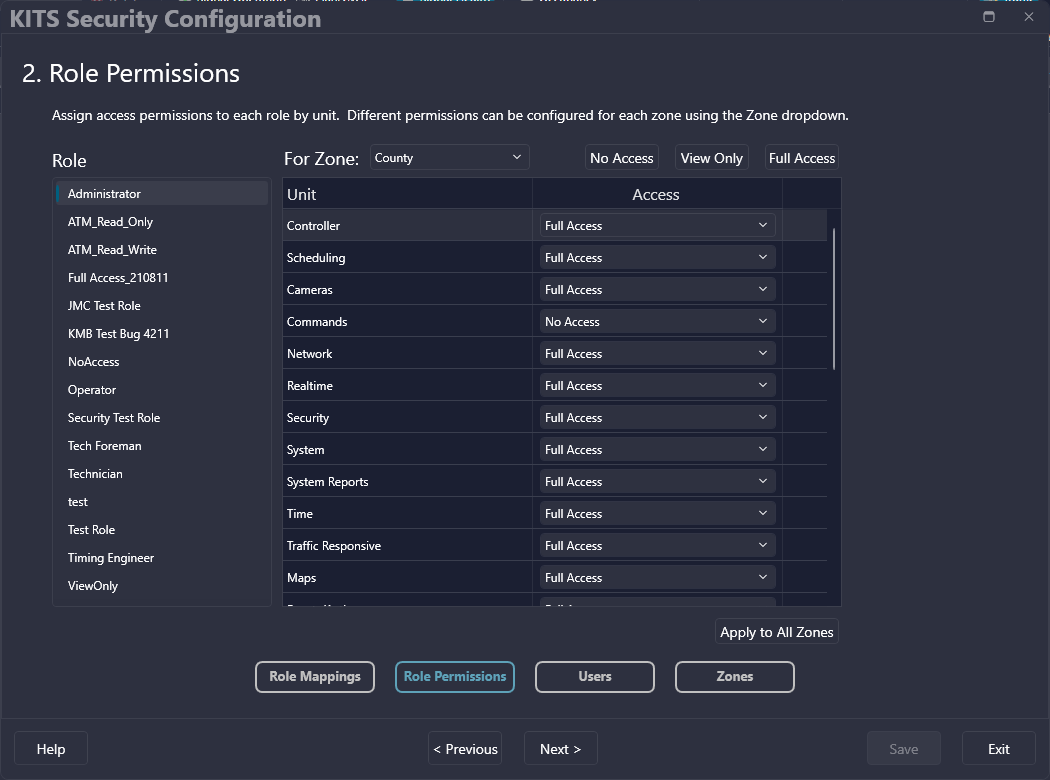
Note: Unit Options may differ.
| Access Level | Description |
| No Access | The user cannot access the unit and the related menu items may be hidden from the user's view. |
| View Only | Operator cannot request information from field devices and has no write privileges. |
| Upload Access | User can retrieve information from field devices. |
| Download Access | User can retrieve and send database information to field devices. |
| Full Access | Full access: User can retrieve and send information to the field device, and can write new values to the database. |
¶ Users (Admin | Security | Advanced) Or (Admin | Security | Quick Setup)
The Users page of the Security Wizard allows quick configuration of user settings. For more details, see Security Quick Setup, as it has all the same functionality.
¶ Zones (Admin | Security | Advanced)
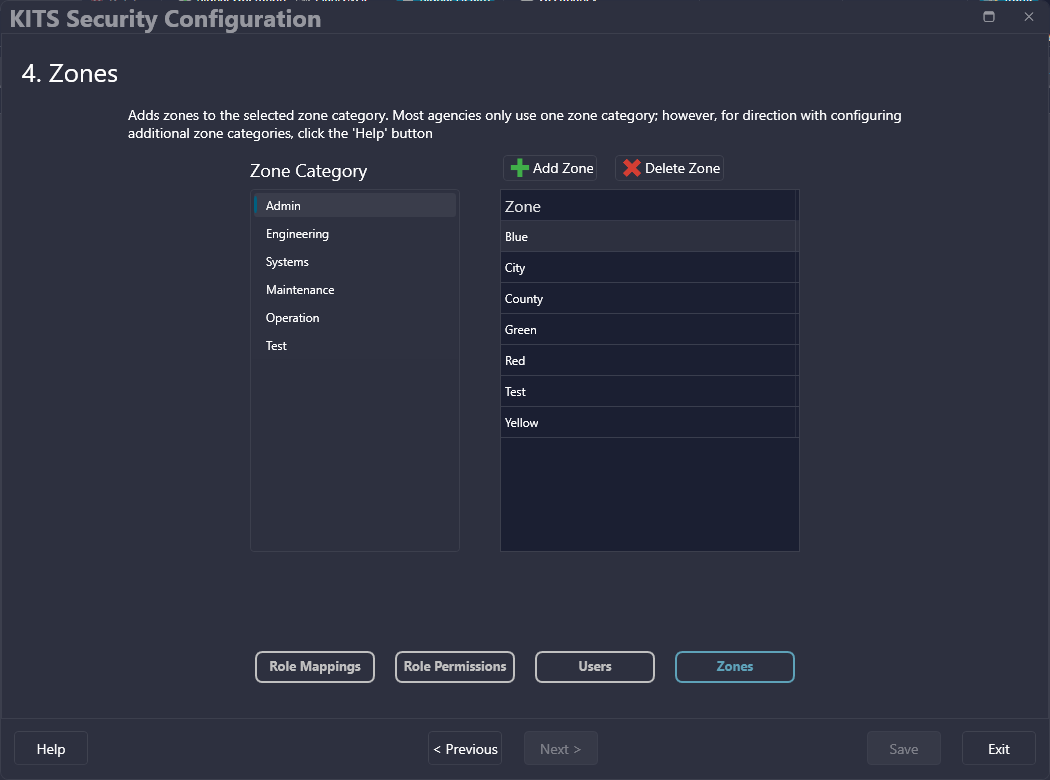
Users can select a Zone Category and edit Zones within the category. Zone Category names may also be edited.
Roles, as well as ITS devices such as Intersections, are assigned to one or more Zones. An Intersection can only belong to one Zone within a Zone Category, but the intersection can be associated with Zones in multiple Zone Categories. A User is associated with one Zone, as a User has one Role and each Role is assigned to one Zone. However, roles may be granted security privileges to other zones on the Role Permissions page.
When selecting Delete Zone, a confirmation message is shown that indicates whether any data is connected with that zone.