¶ Interface
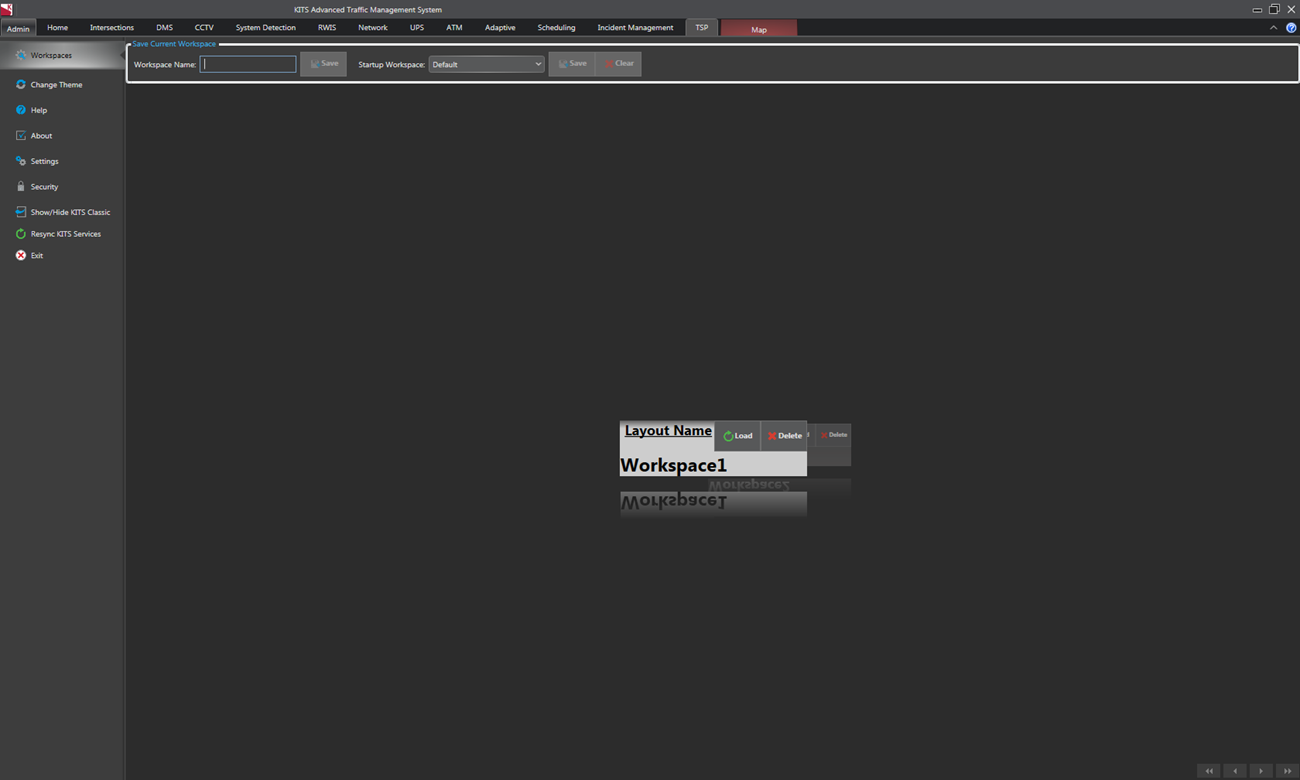
Use the Workspaces feature to create, load, and delete preset layouts for KITS. This feature saves the current layout of the Enhanced KITS UI including any open tabs, extra windows, and docked forms.

¶ Saving a Workspace
To save the current layout of a KITS session, access the Workspaces form from the 'Admin' tab. Within the Workspaces form, enter a desired name into the 'Workspace Name' field, and click the 'Save' button directly to the right of the field.
¶ Selecting a Workspace
To select a Workspace for either loading or deleting there are multiple way to cycle through the available Workspaces. The first option is the use a scroll wheel on the mouse. The second option is to use the left and right arrows located at the bottom of the form.
¶ Loading a Workspace
After a Workspace is selected, it can be loaded by clicking the 'Load' button.
¶ Deleting a Workspace
After a Workspace is selected, it can be deleted by clicking the 'Delete' button.
¶ Setting a Startup Workspace
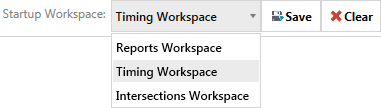
The Startup Workspace option allows the user to select a workspace as the default workspace that is loaded when KITS is opened. To set a Startup Workspace open the drop down menu, select the desired workspace, and then click the 'Save' button. Click the 'Clear' button to set KITS back to the original default startup layout.